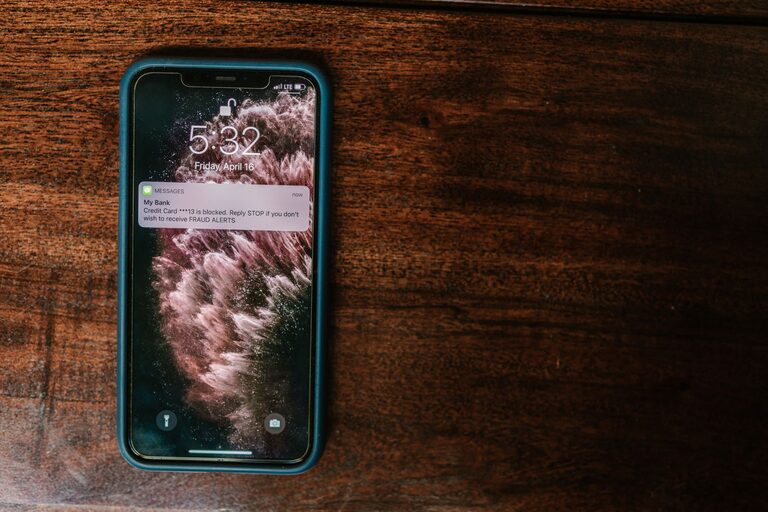
Notifications are designed to keep you informed, but they can also interrupt your attention throughout the day. A steady stream of sounds, banners, and badges can make it difficult to focus, relax, or decide what truly needs your attention.
Setting boundaries with notifications does not mean ignoring important updates. It means creating a system that helps you stay informed without allowing every alert to control your schedule. With a few thoughtful changes, you can make notifications more useful and less distracting.
Start by Reviewing Your Notifications
Before changing your settings, take a quick look at the alerts you receive. Notice which ones are useful, which ones are repetitive, and which ones rarely require action.
You may find that many notifications come from apps you do not use often or from services that send updates mainly to encourage engagement. Identifying these patterns makes it easier to decide what should stay, what should change, and what can be turned off.
Ask yourself:
– Does this notification provide information I need?
– Do I need to see it immediately?
– Does it help me complete a task?
– Could I check this information at a convenient time instead?
– How often does this alert interrupt me?
Start with the apps that send the most notifications. Small changes in these areas can make a noticeable difference.
Decide Which Alerts Are Essential
Not every notification deserves immediate access to your attention. Separate alerts into a few simple categories based on how quickly you need to respond.
Immediate alerts
These are notifications that may require prompt attention, such as direct messages from important contacts or time-sensitive reminders. Keep these limited and carefully chosen.
Routine updates
Routine updates may include email, social media activity, delivery updates, or news alerts. These can often be grouped into scheduled check-ins rather than appearing throughout the day.
Optional alerts
Some notifications are useful only occasionally. Promotional messages, game updates, and general recommendations often belong in this category. Consider turning them off completely or reviewing them less often.
This approach helps you focus on what is important instead of treating every alert as equally urgent.
Turn Off Nonessential Notifications
One of the simplest ways to create boundaries is to disable notifications that do not provide real value. You can usually manage these settings on your device or within each app.
Consider turning off:
– Promotional offers
– Reactions and comments that are not time-sensitive
– Automatic recommendations
– New content alerts
– App activity summaries you do not read
– Repeated reminders
– Notifications from rarely used apps
You do not need to make every change at once. Start with one or two categories and observe how your day feels. If you miss something useful, you can always restore the alert later.
Use Different Alert Types
Many devices allow you to choose how an alert appears. Options may include sound, vibration, banners, lock screen messages, and notification center updates.
Use the least disruptive option that still works for you. For example, an app may not need to make a sound if a quiet banner is enough. Another app may not need to appear on your lock screen at all.
You can also reduce visual distractions by turning off notification badges. Number badges can create a sense that everything must be checked immediately, even when the messages are not important.
A practical setup might include:
– Sounds for a small number of priority contacts
– Silent banners for routine updates
– Notification center access for low-priority apps
– No lock screen previews for private or distracting content
– No badges for apps that encourage frequent checking
Create Notification Free Times
Set specific periods when notifications are paused. These times might include meals, focused work, reading, exercise, or the hour before bed.
Many devices offer features such as Do Not Disturb, Focus modes, or scheduled quiet hours. Use them to create predictable breaks from alerts. You can often allow exceptions for selected contacts or reminders.
The goal is not to be unreachable all the time. Instead, you are creating clear periods when your attention is reserved for something else.
Try starting with one notification-free period each day. Once that feels comfortable, add more times based on your routine.
Schedule Messages and Email Checks
You do not need to respond to every message as soon as it arrives. Checking email and messages at planned times can reduce repeated interruptions and help you work in a more organized way.
Choose times that fit your responsibilities. For example, you might check messages:
– At the beginning of the day
– Around midday
– In the late afternoon
– Before finishing work or personal tasks
Adjust this schedule when necessary, but avoid checking simply because an alert appeared. If an app allows scheduled summaries, use that feature to receive several updates together instead of one at a time.
Separate Work and Personal Alerts
If you use one device for both work and personal activities, notifications can quickly become mixed together. A work message may interrupt personal time, while a personal update may appear during a focused task.
Where possible, separate these alerts by using:
– Different notification profiles
– Separate email accounts
– Work and personal focus modes
– Distinct sound or vibration settings
– Scheduled work hours
– App folders or device profiles
Clear separation makes it easier to switch between activities without carrying every alert into every part of your day.
Set Boundaries With Other People
Notification boundaries are not only about device settings. They also involve communicating how and when you prefer to be contacted.
Let close contacts or coworkers know if you do not check messages continuously. If a matter is urgent, agree on a clear method for reaching you. This can reduce pressure to monitor every app just in case something important appears.
You might say:
– “I usually check messages a few times during the day.”
– “I may not respond immediately during focused work.”
– “Please call if something needs a quick response.”
– “I will reply when I am available.”
These simple statements help set realistic expectations without requiring you to be constantly online.
Keep Your Phone Out of Reach During Focused Tasks
Even when notifications are silent, seeing your phone can encourage you to check it. During tasks that require concentration, place the device out of sight or use a focus mode that limits interruptions.
You can also:
– Turn the screen face down
– Leave the phone in another room
– Use a separate timer for focused sessions
– Close distracting browser tabs
– Keep only the tools needed for the task nearby
Reducing both audible and visual cues makes it easier to stay focused.
Review Your Settings Regularly
Notification needs can change as your apps, responsibilities, and routines change. Review your settings every few weeks or after installing several new apps.
Look for:
– Apps you no longer use
– Alerts that have become repetitive
– Important notifications that are too easy to miss
– New apps with default settings you did not choose
– Schedules that no longer match your routine
A short review can prevent notification clutter from building up again.
Build a System That Works for You
There is no single perfect notification setup. Some people need frequent updates, while others prefer to check information in batches. The right approach depends on your responsibilities, communication habits, and preferred level of availability.
Begin with a few manageable changes:
- Turn off unnecessary alerts.
- Keep immediate notifications limited.
- Schedule quiet periods.
- Use different settings for work and personal time.
- Explain your response habits to important contacts.
- Review your system regularly.
The purpose of setting notification boundaries is to make technology more helpful and predictable. When alerts support your priorities instead of interrupting them, you can stay informed while giving your attention to the activities that matter most.
About the Author